Volume Clone Support
Creating a new volume as a duplicate of an existing volume
Longhorn supports CSI volume cloning.
Volume Cloning
Clone a Volume Using YAML
V1 Data Engine
Suppose that you have the following source-pvc:
apiVersion: v1
kind: PersistentVolumeClaim
metadata:
  name: source-pvc
spec:
  storageClassName: longhorn
  accessModes:
    - ReadWriteOnce
  resources:
    requests:
      storage: 10Gi
You can create a new PVC that has the exact same content as the source-pvc by applying the following yaml file:
apiVersion: v1
kind: PersistentVolumeClaim
metadata:
  name: cloned-pvc
spec:
  storageClassName: longhorn
  dataSource:
    name: source-pvc
    kind: PersistentVolumeClaim
  accessModes:
    - ReadWriteOnce
  resources:
    requests:
      storage: 10Gi
Note: Along with the requirements listed at CSI volume cloning, the
cloned-pvcmust have the sameresources.requests.storageas thesource-pvc.
V2 Data Engine
Assume you have a StorageClass named longhorn-v2 with dataEngine: "v2", and a PVC named source-pvc-v2 provisioned from it. You can clone it using one of two modes:
1. Clone using full-copy mode
You can create a new PVC with the exact same content as source-pvc-v2 by applying the YAML below. Longhorn will copy the data from the source PVC to the new PVC.
apiVersion: v1
kind: PersistentVolumeClaim
metadata:
  name: cloned-pvc-v2
spec:
  storageClassName: longhorn-v2
  dataSource:
    name: source-pvc-v2
    kind: PersistentVolumeClaim
  accessModes:
    - ReadWriteOnce
  resources:
    requests:
      storage: 10Gi
2. Clone using linked-clone mode
The full-copy mode creates a new PVC that is fully independent of the source PVC, but it requires time and resources to copy the data. If you need to quickly create a temporary PVC with the same content as the source without copying the data (for example, for backup solutions like Velero or Kasten), you can use the linked-clone mode. This mode creates a new PVC that shares the same data blocks as the source PVC.
First, create a StorageClass with cloneMode set to linked-clone:
kind: StorageClass
apiVersion: storage.k8s.io/v1
metadata:
  name: longhorn-v2-linked-clone
provisioner: driver.longhorn.io
reclaimPolicy: Delete
volumeBindingMode: Immediate
parameters:
  dataEngine: "v2"
  cloneMode: "linked-clone"
  numberOfReplicas: "1"
  staleReplicaTimeout: "2880"
Next, create a new PVC that uses the above StorageClass and references the source PVC in the dataSource field:
apiVersion: v1
kind: PersistentVolumeClaim
metadata:
  name: cloned-pvc-v2-linked-clone
spec:
  storageClassName: longhorn-v2-linked-clone
  dataSource:
    name: source-pvc-v2
    kind: PersistentVolumeClaim
  accessModes:
    - ReadWriteOnce
  resources:
    requests:
      storage: 10Gi
Note:
- The
linked-clonemode is only supported by the v2 data engine.- A PVC created using
linked-cloneshares data blocks with the source and has the following limitations:
- It can have only one replica.
- It cannot be snapshotted or backed up.
- It cannot be used as the source for another clone operation.
- A source PVC can only have one
linked-clonePVC at a time.linked-clonePVCs are designed to be short-lived. It is highly recommended to delete them when no longer needed. For more examples of linked-clone, see the blog - Backup Applications with Longhorn V2 Volumes using Velero.
Clone CSI Snapshot
To clone a CSI snapshot, refer to the documentation on Creating a Volume from a Snapshot.
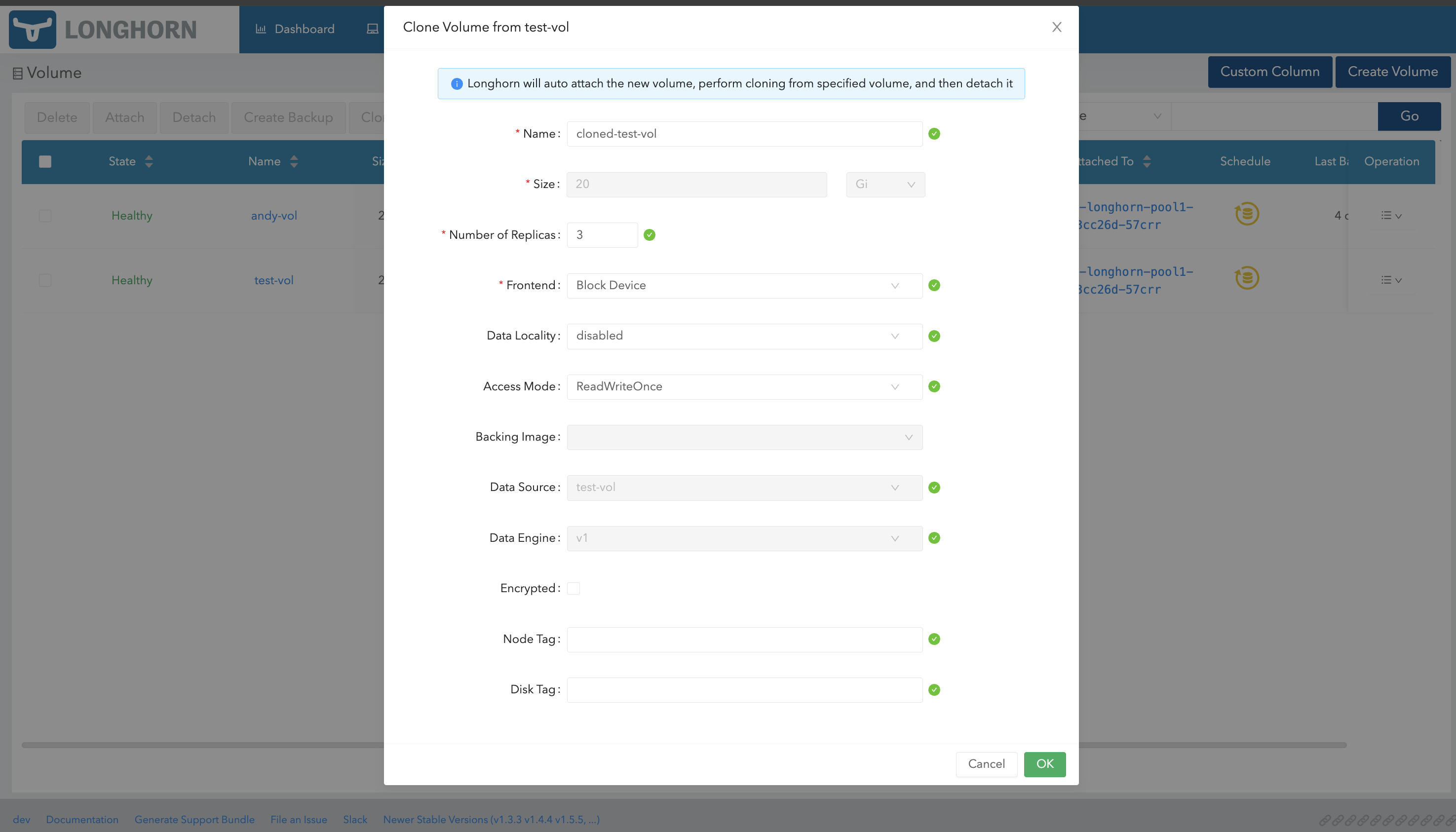
Clone Volume Using the Longhorn UI
Clone a volume
- Go to the Volumes page.
- Select a volume, and then click Clone Volume in the Operation menu.
- (Optional) Configure the settings of the new volume.
- Click OK.
Clone a Volume Using a Snapshot
- Go to the Volumes page.
- Click the name of the volume that you want to clone.
- In the Snapshot and Backups section of the details page, identify the snapshot that you want to use and then click Clone Volume.
- (Optional) Configure the settings of the new volume.
- Click OK.
Clone Multiple Volumes (Bulk Cloning)
- Go to the Volumes page.
- Select the volume you want to clone.
- Click Clone Volume button on top of the table.
- (Optional) Configure the settings of the new volumes
- Click OK
Note:
- The Longhorn UI pre-fills certain fields and prevents you from modifying the values to ensure that those match the settings of the source volume.
- Longhorn automatically attaches the new volume, clones the source volume, and then detaches the new volume.
- With efficient cloning enabled, a newly cloned and detached volume is degraded and has only one replica, with its clone status set to
copy-completed-awaiting-healthy. To bring the volume to a healthy state, transition the clone status tocompletedand rebuild the remaining replica by either enabling offline replica rebuilding or attaching the volume to trigger replica rebuilding. See Issue #12341 and Issue #12328.
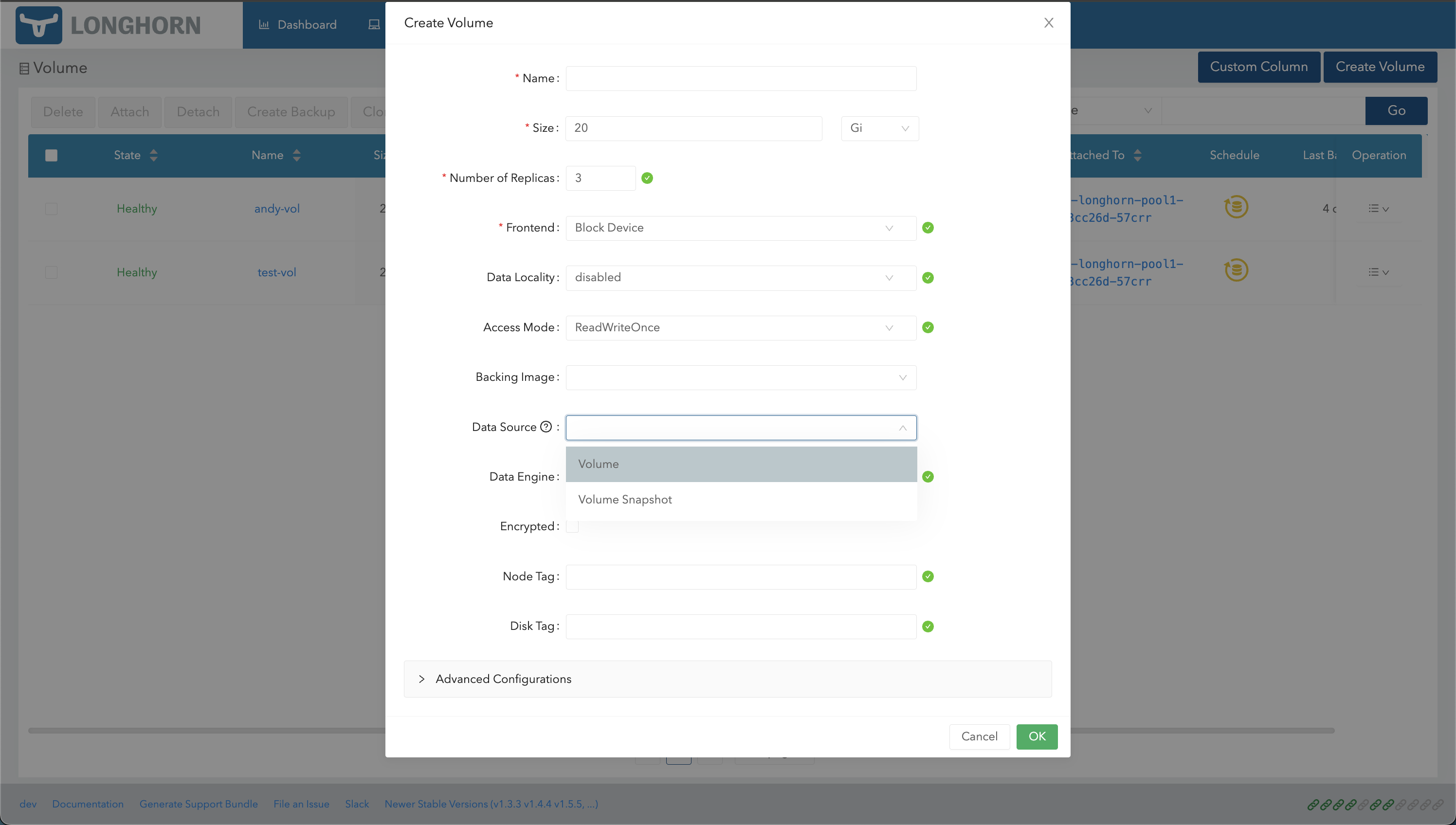
Volume Creation
- Go to the Volumes page.
- Click Create Volume.
- Select the data source (Volume or Volume Snapshot) that you want to use.
- If you select Volume Snapshot, choose a snapshot.
- Specify the volume name.
- Click OK.
History
Available since v1.2.0 (V1 Data Engine) and v1.10.0 (V2 Data Engine).
© 2019-2026 Longhorn a Series of LF Projects, LLC. Documentation Distributed under CC-BY-4.0.
For website terms of use, trademark policy and other project policies please see lfprojects.org/policies.